
How To Create A Loot Filter

Published on: 3/1/2025
Loot Filters in Last Epoch are a critical component to your experience and offer players a way to find exactly what they are looking for when it comes to gear dropped by enemies. We have two options available to learn from: first, is a video from AaronActionRPG going over the basics on how to create a loot filter and second, is a step by step build out players can follow.
Loot Filter Video
 Step by Step Guide
To make a loot filter in Last Epoch, you can use the in-game tools to customize which items are displayed or hidden based on your preferences.
Accessing the Loot Filter Menu
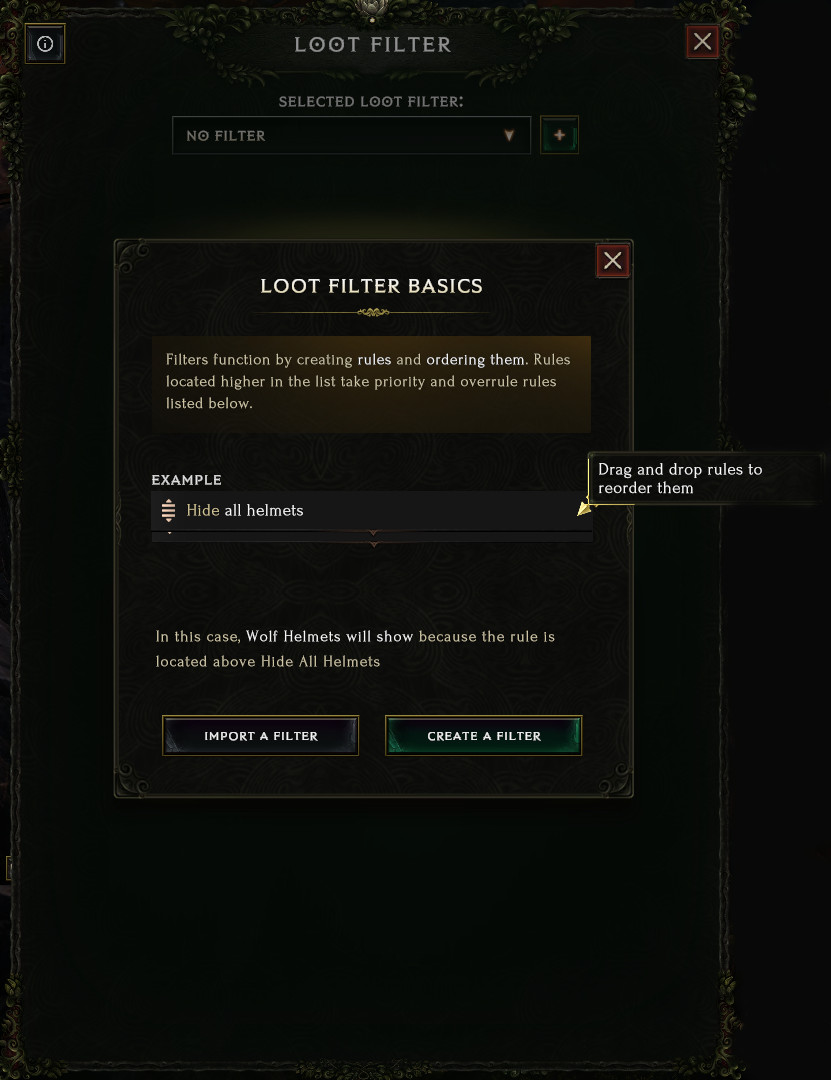
Open the Interface: While in-game, press Shift + F to bring up the loot filter interface. Alternatively, go to the Settings menu (via Esc), navigate to the Gameplay tab, and click Manage Loot Filters.
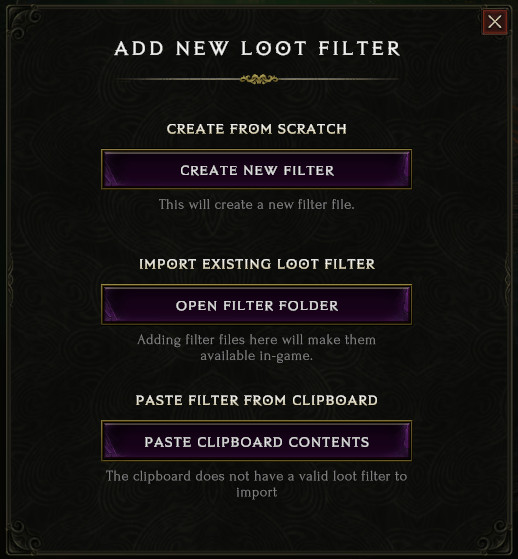
Create a New Filter: In the loot filter window, click the "+" icon next to "Select Loot Filter" at the top. Choose "Create New Filter". You’ll be prompted to name your filter—pick something descriptive like "Leveling Filter" or "Endgame Gear" so you can easily identify it later.
 Building Your Loot Filter
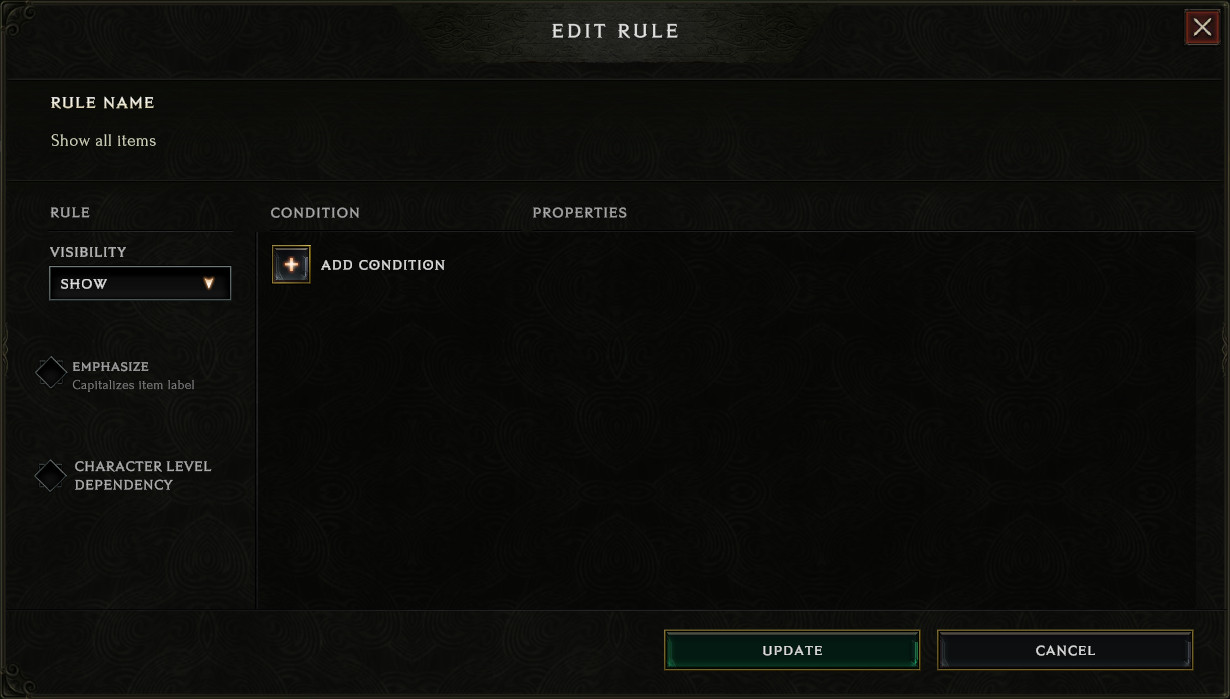 The loot filter works by applying rules that determine what items are shown or hidden. Rules higher in the list take priority over those below them, so order matters. Here’s how to add and customize rules:
Add a Rule:
Click the green "Add Rule" button in the loot filter interface.
A new window will pop up with options to define the rule.
Set Visibility:
Choose "Show" to display items that meet the rule’s conditions or "Hide" to make them invisible on the ground. For example, you might "hide" low-tier items or "show" specific gear you’re hunting.
Define Conditions:
Click the "Conditions" dropdown to specify what the rule applies to. Common options include:
Rarity: Filter by item rarity (Normal, Magic, Rare, Unique, Exalted, etc.).
Item Type: Select specific gear like "One-Handed Swords" or "Helmets."
Affixes: Highlight items with stats you want (e.g., "+ Lightning Damage" or "Increased Minion Damage").
Affix Tier: Set a minimum tier (e.g., Tier 5+) for affixes to refine the filter further.
Class: Filter items usable by specific classes (e.g., Primalist or Acolyte).
You can add multiple conditions to a single rule. For example, "Show Rare Helmets with +Health and Tier 3+ affixes."
Customize Appearance (Optional):
Under "Highlight", you can recolor item nameplates (e.g., red for priority gear) or make them bold/uppercase to stand out.
Repeat: Add more rules as needed. You can create up to 75 rules per filter. For example:
Rule 1: "Show all Unique and Exalted items" (place at the top for priority).
Rule 2: "Show Rare items with +Critical Strike Chance."
Rule 3: "Hide all Normal and Magic items" (place at the bottom as a catch-all).
Adjust Rule Order:
Use the arrows next to each rule to move it up or down. Higher rules override lower ones. For instance, if you "hide all weapons" but have a "show Unique weapons" rule above it, Unique weapons will still appear.
Example: Basic Leveling Filter
Here’s a simple filter to get you started:
Rule 1: "Show Unique, Set, and Exalted items" (top priority, no conditions beyond rarity).
Rule 2: "Show Rare items with [desired affix, e.g., +Strength]" (for your build).
Rule 3: "Hide Normal and Magic items" (bottom, cleans up clutter).
Saving and Applying
Once you’ve added your rules, click "Save" or simply exit the menu—your filter will autosave.
Ensure your new filter is selected in the dropdown at the top of the loot filter window. If it’s active, you’ll see it applied immediately as you play.
Tips
Start Broad: Early in the game, show more items (e.g., Rares and Uniques) to gather crafting materials. Tighten the filter as you progress.
Test It: Drop some items or run a quick area to see what shows up. Adjust as needed.
Import Option: If you’d rather use a premade filter, click the "+" icon, select "Paste Clipboard Contents", and paste a filter code from sites like LastEpochTools.com.
That’s it! You now have a custom loot filter tailored to your needs in Last Epoch. Experiment with rules to refine it as your character grows. Happy hunting!